
Now that you’ve installed GlassFish Tools Bundle for Eclipse 1.1, lets use this bundle to create a simple Metro/JAX-WS compliant Web service and deploy on GlassFish. These steps will work with either Eclipse 3.4.2 or 3.5 with WTP Java EE support.
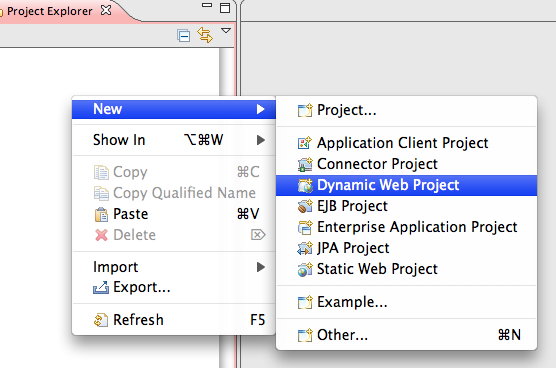
- Lets create a simple “Dynamic Web Project” as shown below:
- Name the project “HelloMetro” and take all other defaults:
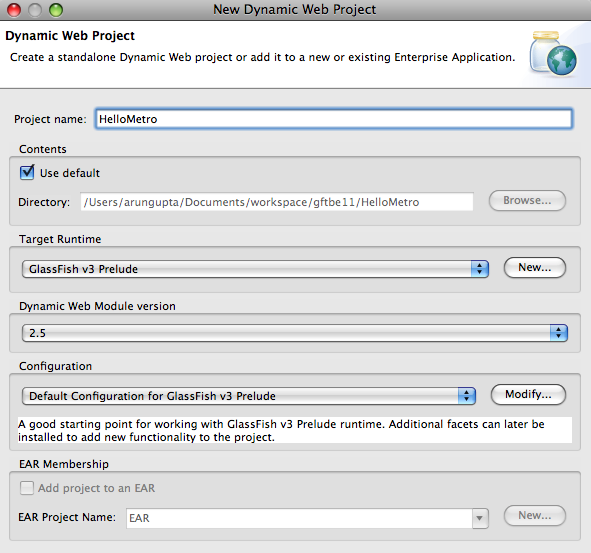
Click on “Finish” to complete the project creation.
- Metro allows to create a Web service from a POJO class. So let’s add a POJO to the project by right-clicking on the project and selecting “New”, “Class” as shown below:
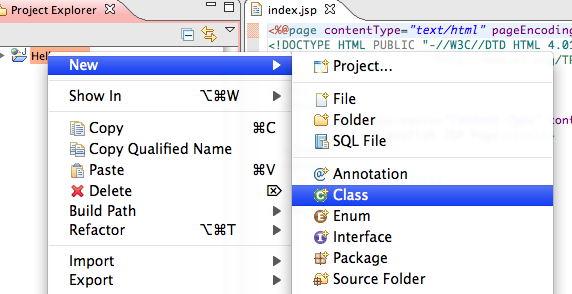
Specify the package name as “server”, class name as “HelloService” and click on “Finish”.
- Add a simple method to the newly generated class as:
public String sayHello(String name) { return "Hello " + name + "!!"; } - Expand the project, go to “HelloService.java” in “server” package, right-click, select “Web Services”, “Create Web service”.
- Click on “Web service runtime: Apache Axis” and select “Metro (JAX-WS) Runtime” as the Web service runtime as shown below:
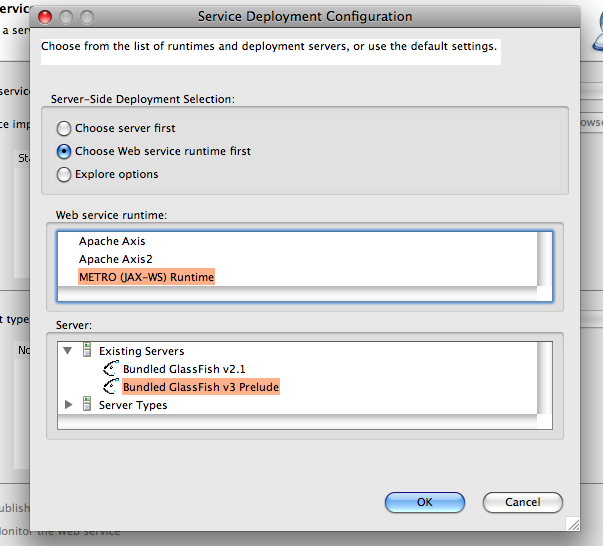
- Move the slider on the left to top. This will enable testing of the deployed Web service. The completed configuration looks like:
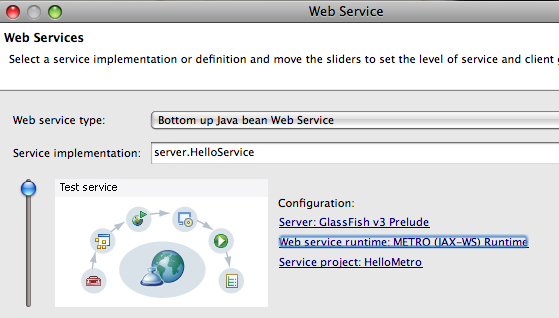
and click on “Next >”.
- Select the checkbox “Copy Metro library jars to the project” to resolve the references correctly as shown below:
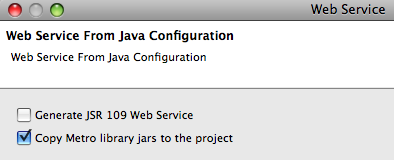
and click on “Next >”. This bundles the application and deploys to GlassFish and provides an option to test the deployed Web service as shown below:
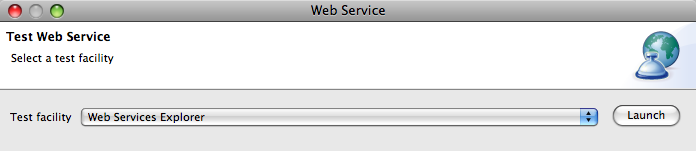
Clicking on the “Launch” button shows the following output in the browser:
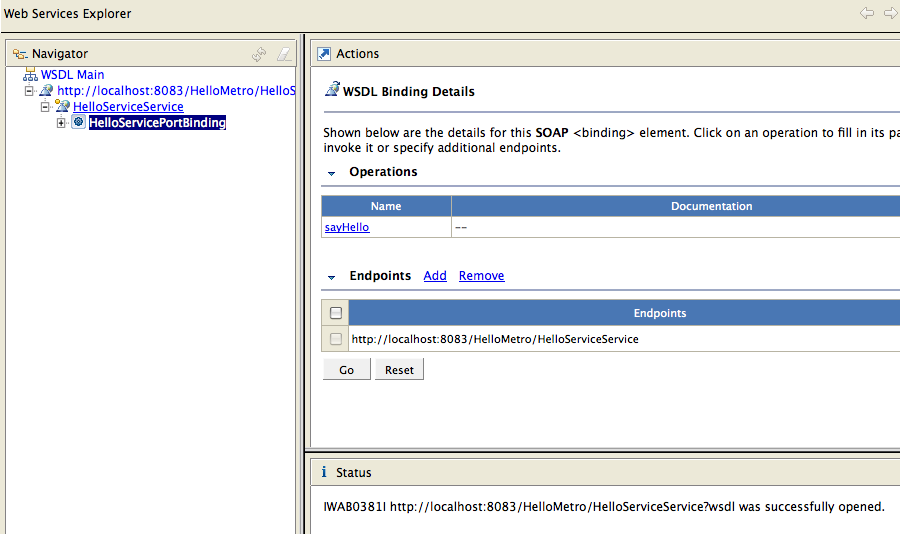
The WSDL is hosted at “http://localhost:8083/HelloMetro/HelloServiceService?wsdl”.
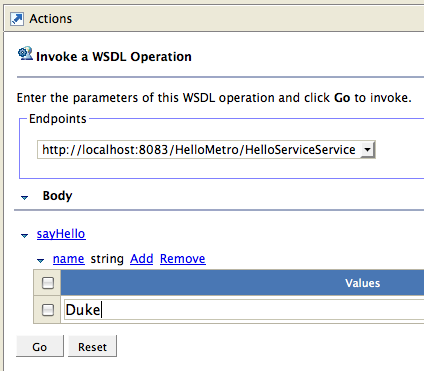
- Click on “sayHello” method, click on “Add” and enter the value as “Duke” as shown below:
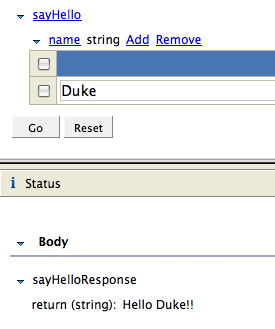
Click on “Go” and the response is shown as:
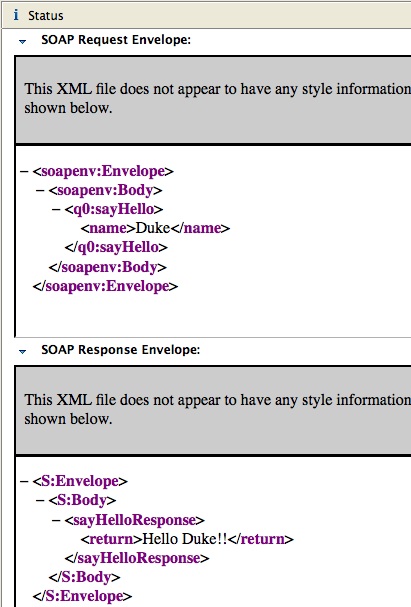
Clicking on “Source” in the response window shows the SOAP request/response messages as shown below:
- Alternatively, you can click on “Finish” to complete the dialog. Then click on “Run” menu item, “Launch the Web Services Explorer” to see a screen as:
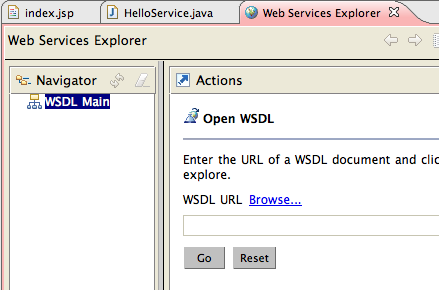
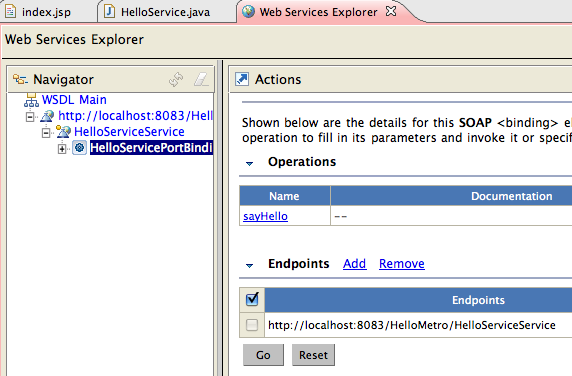
Enter the URL of the WSDL in “WSDL URL” box as “http://localhost:8083/HelloMetro/HelloServiceService?wsdl” and click on “Go”. Now you are seeing the similar screen to test the Web service within the integrated browser as shown below:
A future blog will cover how to write a database-enabled application using the bundled Dali JPA Tools and MySQL pre-registered JDBC driver.
Please send your questions and comments to .
Please leave suggestions on other TOTD that you’d like to see. A complete archive of all the tips is available here.
Technorati: totd glassfish eclipse galileo webservices metro jax-ws

- TOTD #99: Creating a Java EE 6 application using MySQL, JPA 2.0 and Servlet 3.0 with GlassFish Tools Bundle for Eclipse
- TOTD #19: How to Add Metro Quality-of-Service to Contract-First Endpoint ?
- Creating and Invoking a Web service using GlassFish in NetBeans, IntelliJ, and Eclipse – Part 1
- TOTD #23: JavaFX Client invoking a Metro endpoint
- Creating and Invoking a Web service using GlassFish in NetBeans, IntelliJ, and Eclipse – Part 3
[...] TOTD #98 showed how to create a simple Metro/JAX-WS compliant Web service using that bundle and deploy on GlassFish. [...]
Pingback by TOTD #99: Creating a Java EE 6 application using MySQL, JPA 2.0 and Servlet 3.0 with GlassFish Tools Bundle for Eclipse - Technology — August 31, 2009 @ 11:00 am
[...] TOTD #98 showed how to create a simple Metro/JAX-WS compliant Web service using that bundle and deploy on GlassFish. [...]
Pingback by TOTD #99: Creating a Java EE 6 application using MySQL, JPA 2.0 and Servlet 3.0 with GlassFish Tools Bundle for Eclipse « Miles to go … — August 31, 2009 @ 1:29 pm
Nice blog
I am a bit confused how to get METRO JAX-WS runtime activated on the eclipse interface. Can anyone describe how to get the METRO runtime activate on Eclipse 3.5.
Comment by Joe — October 30, 2009 @ 6:43 am
Joe,
Are you using stand-alone Eclipse or GlassFish Tools bundle for Eclipse ?
Comment by arungupta — November 17, 2009 @ 11:20 am
For “GlassFish Tools Bundle for Eclipse v1.2 (December 17, 2009)”:
In step 8, we have to change to:
Keep default.
It means:
Unselect the checkbox “Copy Metro library jars to the project”
Select the checkbox “Generate JSR 109 Web Service”
If we don’t make above change, sun-jaxws.xml file and a servlet mapping (in web.xml) are created and JEE will have do a duplicated work (follow web.xml and anotation in HelloService) and we will have a bug as:
java.lang.IllegalStateException: Servlet [HelloServiceService] and Servlet [HelloService] have the same url pattern: [/HelloServiceService]at org.glassfish.apf.AnnotationInfo@aeaea6
Comment by xcirclex2004 — February 14, 2010 @ 5:57 am
Arun, I am using standalone Eclipse and I have added the glassfish plugin, but i am not getting the METRO JAX-WS runtime as option in my eclipse setup. though I see the the “glassfish V3 JavaEE 6″ server. Please help..
Comment by Avinash — April 1, 2010 @ 5:04 am
Nice subject , will be back for more reading .
.
Comment by good books — September 12, 2010 @ 10:24 pm
You can make a number of valid items in your article and would likely believe many. Websites that are designed for kids are also recommended to include sound files to their webpage. Make a website performs the much needed service of decoding the worldwide web.
Comment by Jonson — November 4, 2010 @ 2:32 am
czemu nie:)
Comment by hierrenimetle — January 30, 2011 @ 5:57 pm